Choose the right edit
A clean illustration and an accurate record need different workflows
A note added over a screenshot is a different target from the labels inside the app. Decide which words should disappear and which must remain readable before submitting.
| Your task | Best starting point | Check before reuse |
|---|---|---|
| Remove an added note or caption | Quote the note and include its backing in the request. | Backing edges, shadows and nearby UI lines. |
| Keep a faithful app screenshot | Hide the note in its source or take a fresh screenshot. | All displayed values, labels and UI states. |
| Share a file containing private data | Use a suitable redaction process before sharing or uploading. | Visible identifiers, exported file and metadata. |
| Reveal text that a box already covers | Return to the original app or source. | AI fill cannot verify the hidden information. |
One screenshot first
Name the note. Keep the UI. Read the result.
- 01 / Keep a reference
Use the best original copy
Keep an untouched screenshot. Avoid repeated messaging app compression. If the source is still available, removing the annotation there gives you a more faithful capture.
- 02 / Define the target
Quote the exact unwanted words
Upload your file above. Replace the general annotation request with the note text and its location. Name important labels and numbers to keep. Review the displayed credit cost, then process.
- 03 / Read, then download
Inspect both files at native size
Read the retained labels and values. Trace borders, separators and icons. Check output dimensions. Use the result only if those changes suit your illustration; recapture the app for an accurate record.
Two actual processing results
What happened to the note and the neighboring UI?
We authored these fictional interfaces in HTML and CSS, captured them in a browser and processed the resulting PNGs with this tool. The numbers are demonstration data. Neither example represents a customer record or a real third party app.
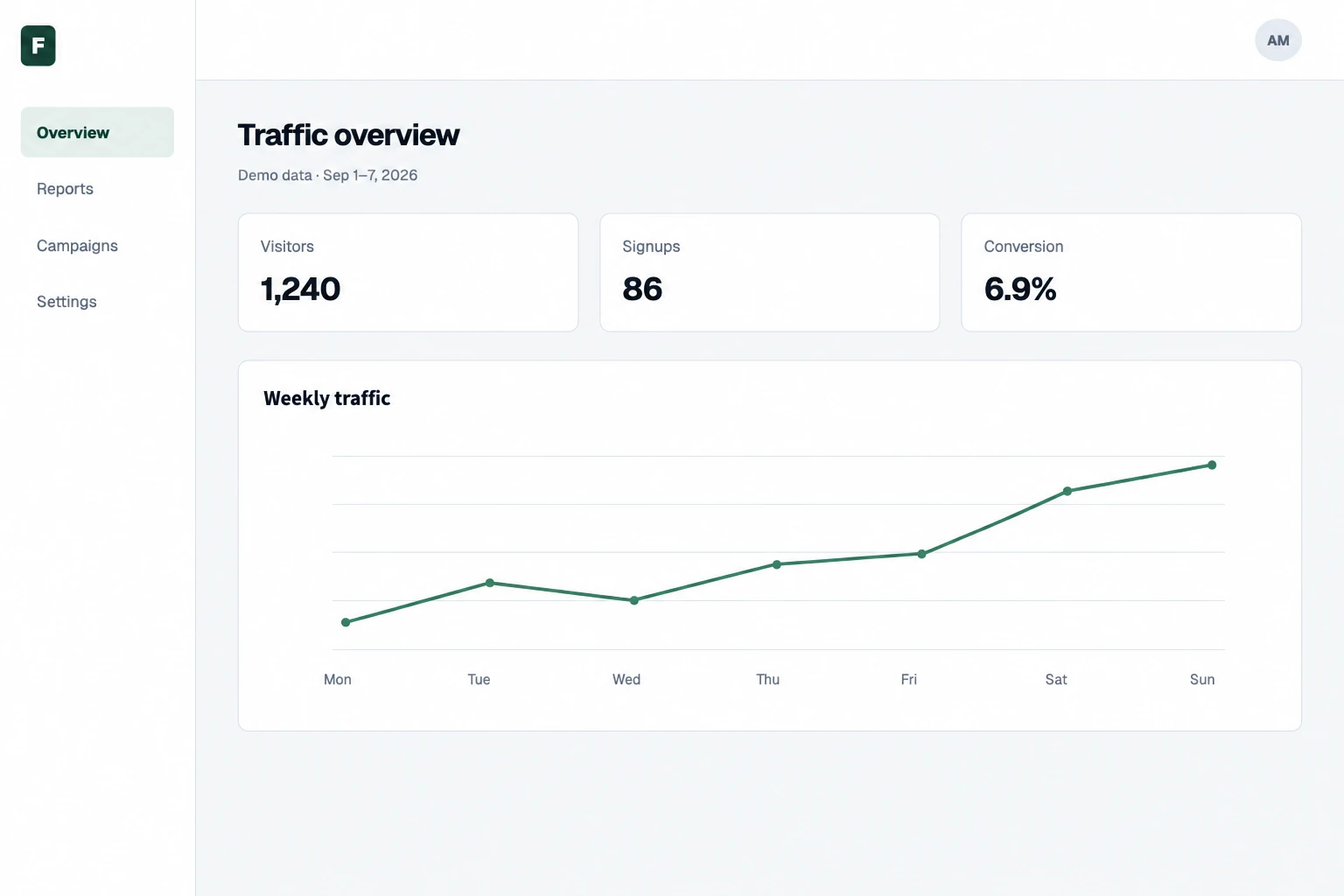
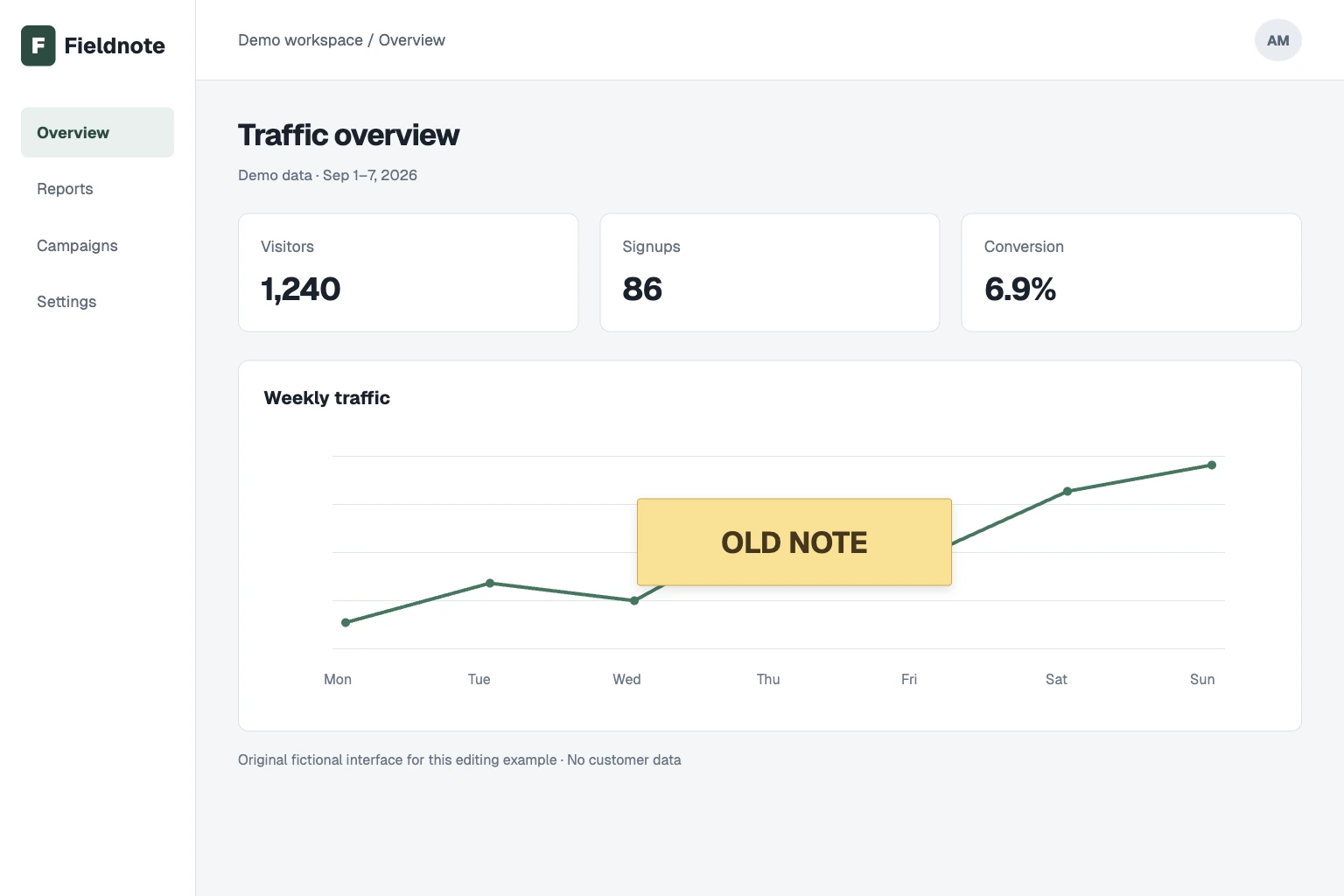
Original fictional interface captured in a browser · Actual tool result · October 31, 2026. No customer data or third party app screenshot.
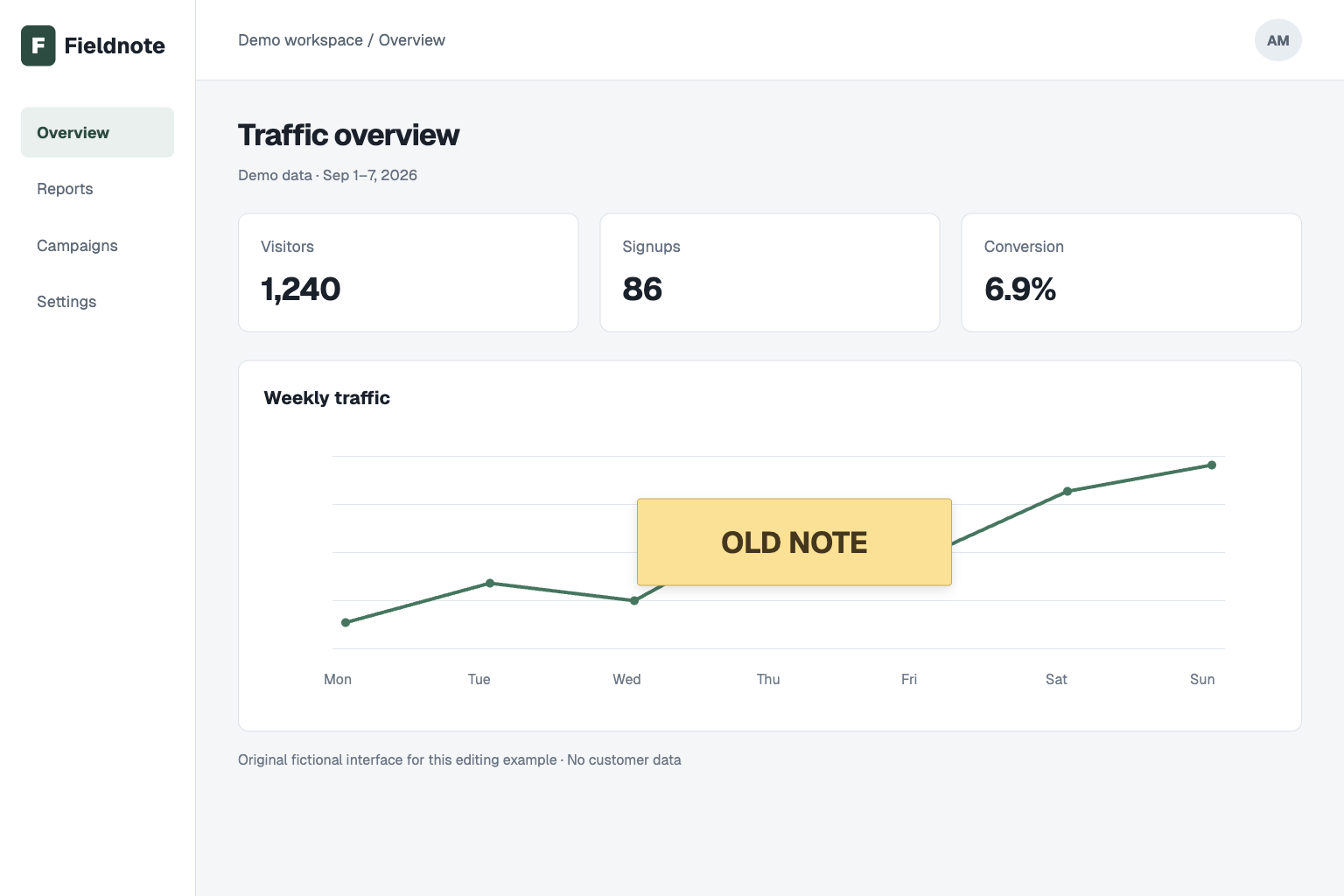
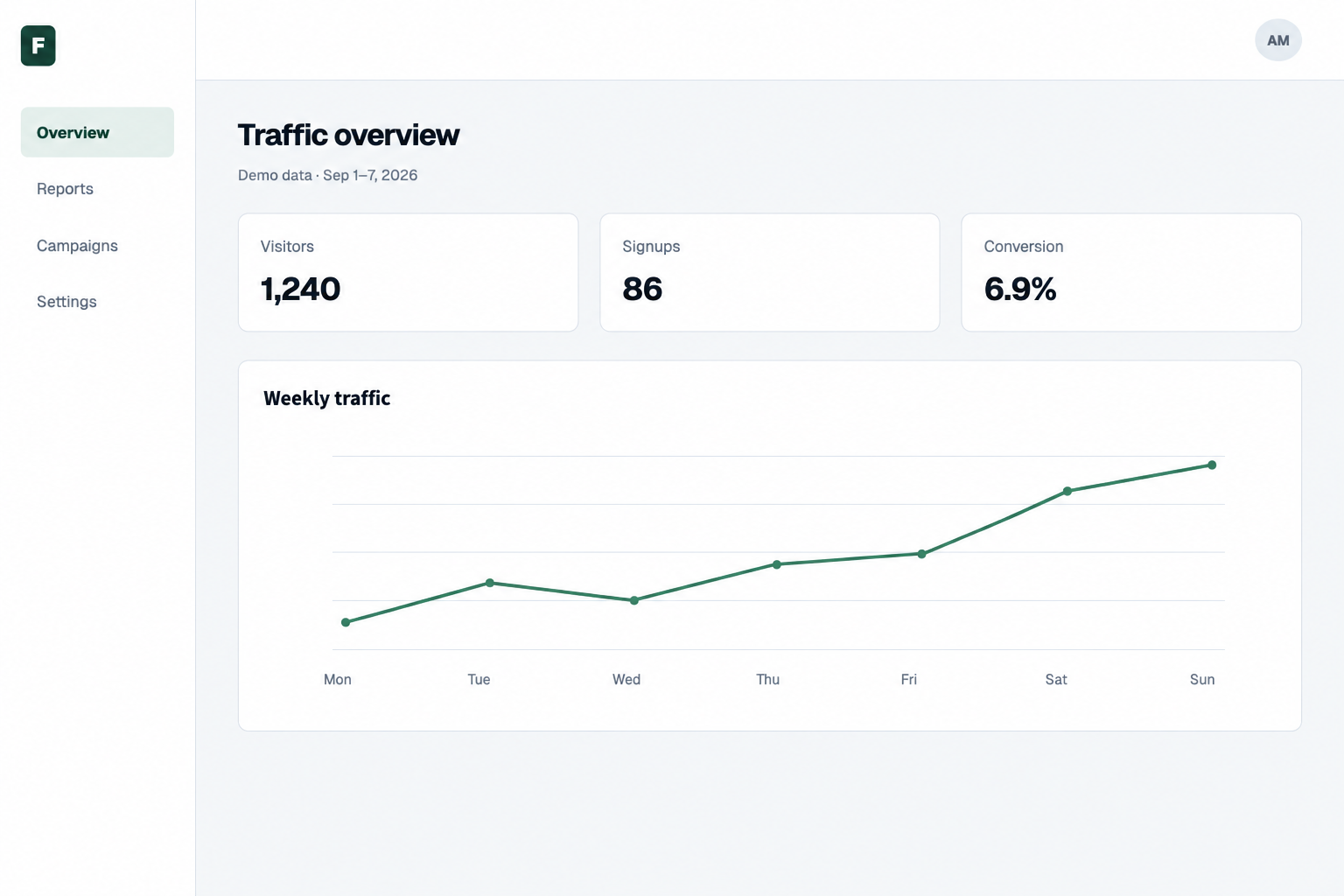
Inspect labels and lines at 2×
The same files are enlarged around their center with CSS. This view helps locate changes. Open both PNGs at their native size to read small type; an enlarged preview does not establish pixel identity.
Annotation across a chart
The yellow “OLD NOTE” panel crosses grid lines and the plotted line. Removing it requires invented pixels in that area. Check the three visible card values separately from the reconstructed chart.
Remove only "OLD NOTE" and its yellow rectangle and shadow from the chart. Continue the grid lines and the visible green line through that area. Keep all other interface text, labels, icons, numbers and layout. Keep "Visitors" 1,240, "Signups" 86 and "Conversion" 6.9% exactly as written. Do not add text or crop the screenshot.
“OLD NOTE” and its backing are gone. The card values 1,240, 86 and 6.9% remain readable, but Fieldnote, the workspace breadcrumb and the bottom source note disappeared despite the keep request. The covered chart segment was invented and type rendering changed. This result fails a faithful screenshot check; do not use it as an accurate app record.
Source checkpoints: Visitors 1,240; Signups 86; Conversion 6.9%. A plausible connecting line does not establish the original data beneath the note.
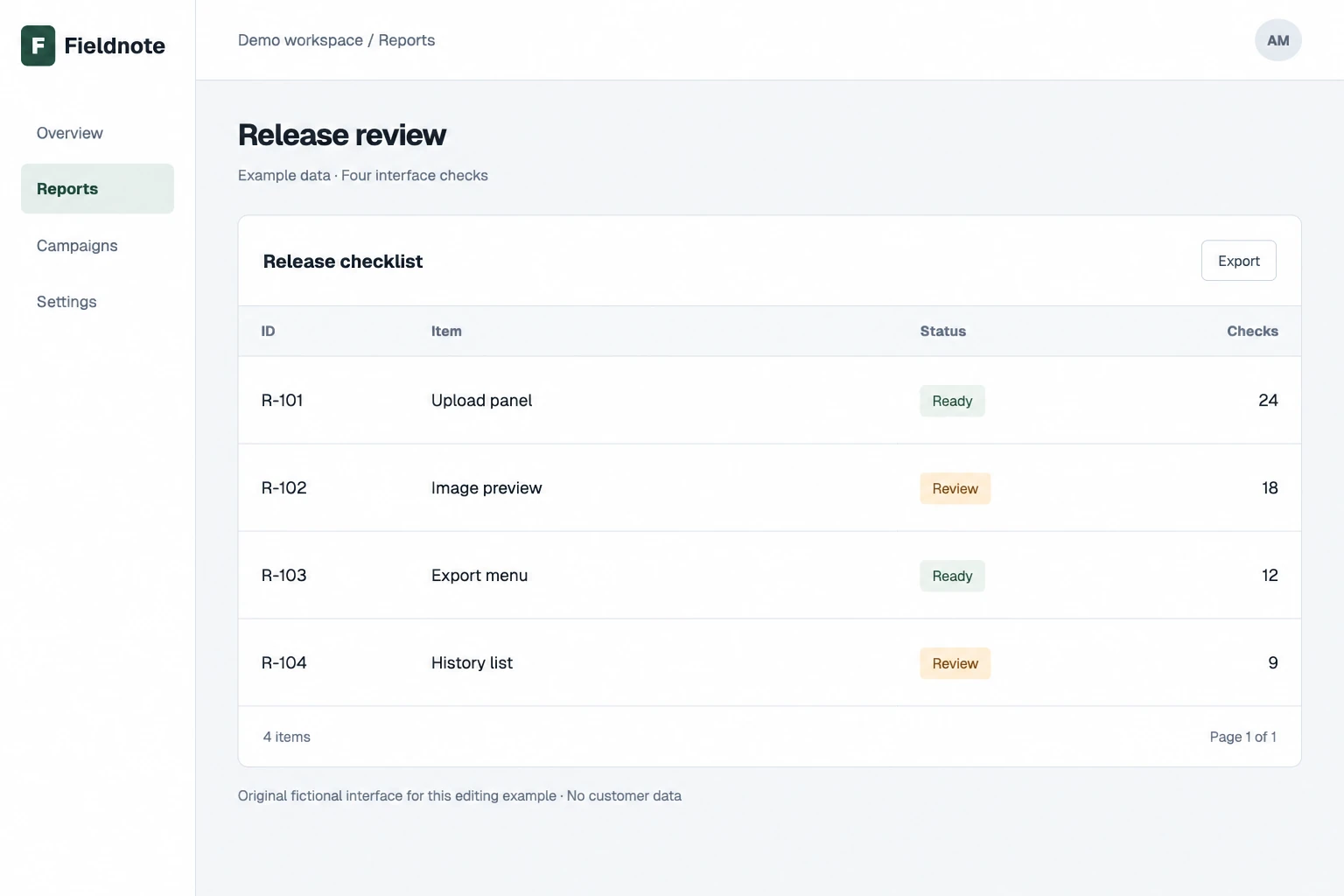
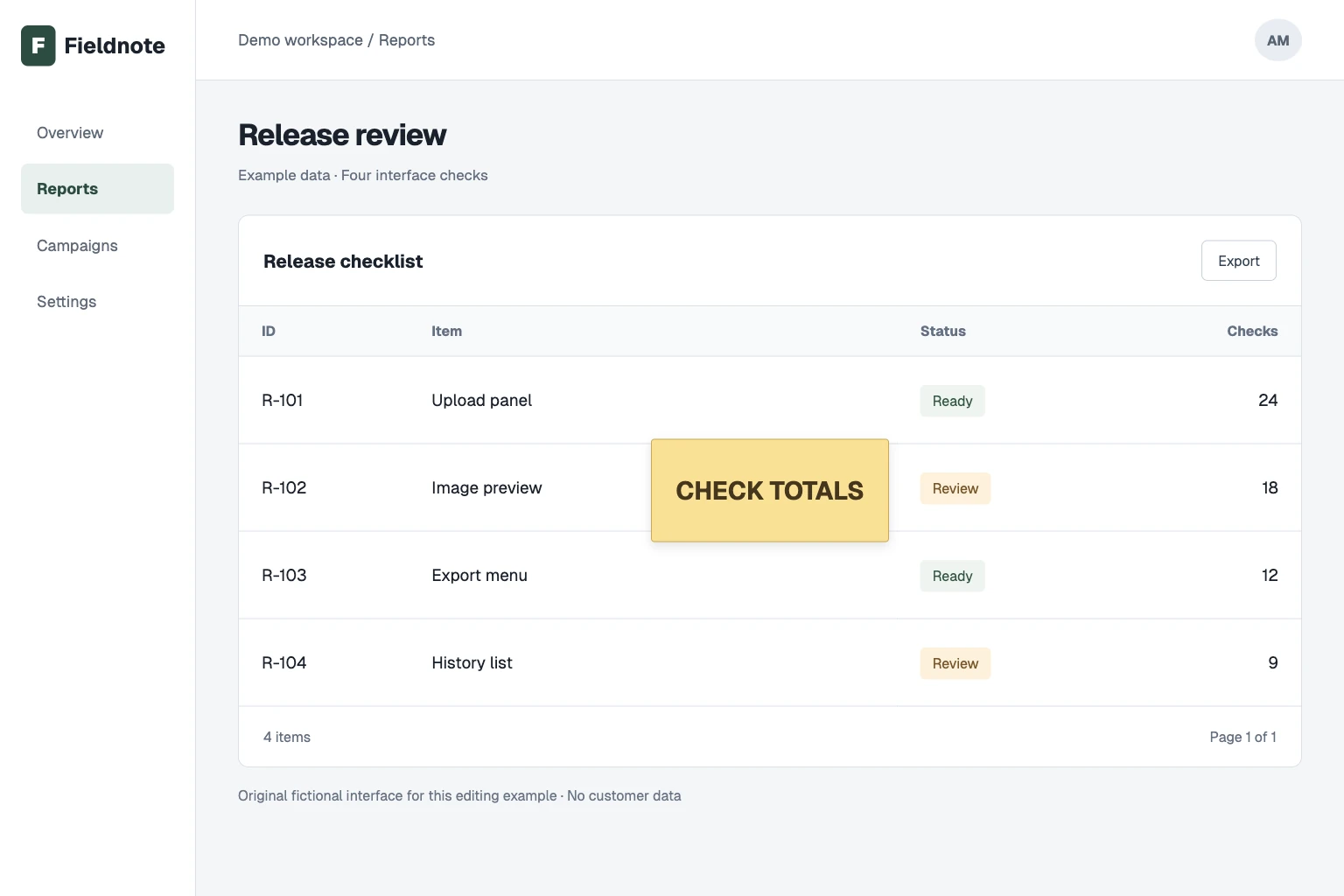
Original fictional interface captured in a browser · Actual tool result · October 31, 2026. No customer data or third party app screenshot.
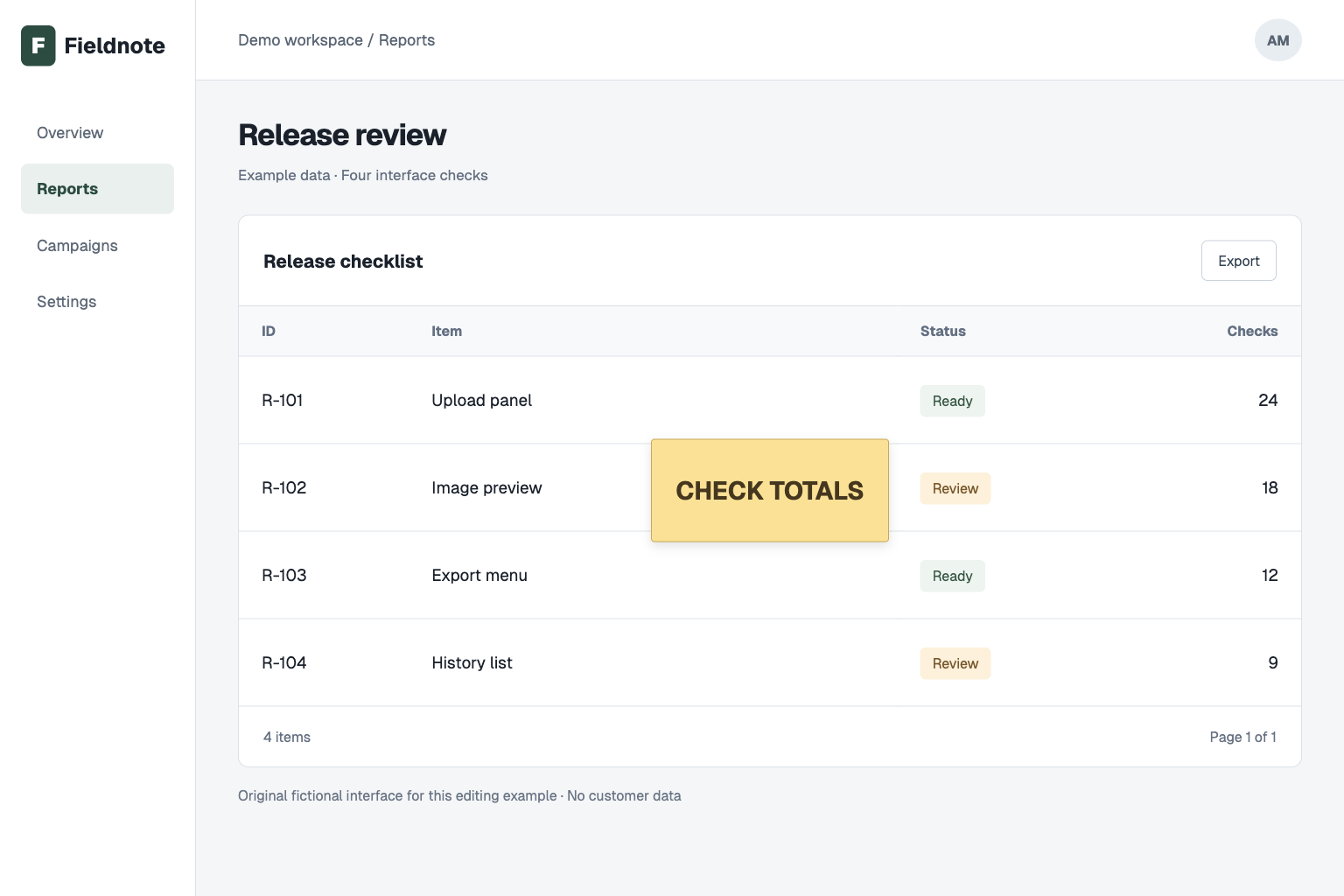
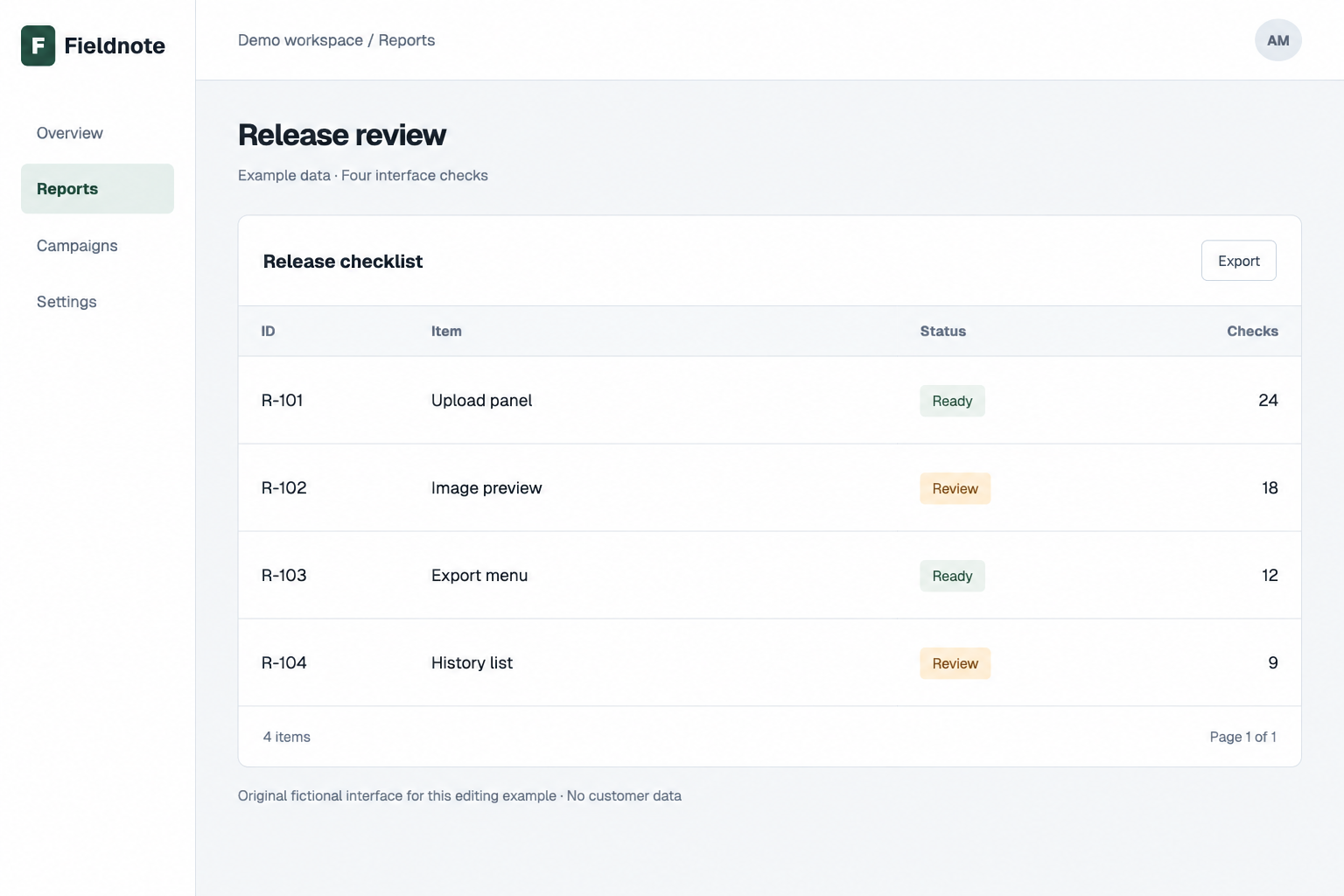
Inspect labels and lines at 2×
The same files are enlarged around their center with CSS. This view helps locate changes. Open both PNGs at their native size to read small type; an enlarged preview does not establish pixel identity.
Annotation beside small table labels
“CHECK TOTALS” covers blank cell space and a row separator, close to the status column. The original row values remain visible. Read all four rows and inspect the separator through the cleared area.
Remove only "CHECK TOTALS" and its yellow rectangle and shadow in the table. Continue the thin row separators. Keep the title, column headings, row IDs R-101 to R-104, item labels, statuses and numbers 24, 18, 12 and 9 exactly as written and in place. Keep the buttons and sidebar text. Do not invent hidden values, add text or crop the screenshot.
“CHECK TOTALS”, its backing and shadow are gone, with a thin row separator continuing across the cleared area. R-101 to R-104, item labels, Ready/Review and values 24, 18, 12 and 9 remain readable in their rows. Fine text weight, edge sharpness and pale panel shading differ. This is a generated raster edit, not pixel identical UI.
Source checkpoints: R-101 / Upload panel / 24; R-102 / Image preview / 18; R-103 / Export menu / 12; R-104 / History list / 9. Also check Ready and Review in their original rows.
Remove the overlay. Check what replaced it.
Inspect the exported file
Six details worth checking before you share
Read the interface
- Read every retained label, including small sidebar and button text.
- Compare digits, commas, decimal points, percentages and row IDs.
- Check status words against their row and color. Correct words in the wrong row are still a changed screenshot.
Trace its structure
- Follow horizontal borders and column alignment across the old note.
- Compare icons, chart points and selected controls with the original.
- Open the downloaded PNG at native size. Check dimensions, text sharpness, panel edges and any leftover annotation shadow.
If labels or values change, discard the result for documentation. Capture the app again, edit the original annotation layer or use a controlled local edit for a noncritical illustration. A new AI attempt can produce a different reconstruction and consumes another task and credits.
For a caption on a saved photo, use the caption bar and outline examples. For other words you need to retain, use the specific text instructions. For texture repair, compare the background quality examples.
Accuracy, privacy and limits
Screenshot text removal FAQ
Can I remove a note or text box from a screenshot?
Upload a supported image and quote the exact annotation you want removed. Include its box, highlight or shadow if those should go too. Ask to retain the other interface labels and numbers, then inspect the result. The examples here show two actual edits of our own fictional interface screenshots.
Will the rest of the interface stay exactly the same?
There is no pixel lock or selection brush. A keep instruction is a request: small lettering, numbers, spacing, borders and charts can change. Compare the original and result at native size. If the screenshot must document the app accurately, remove the annotation in its source or capture the app again.
Can it recover the real numbers or messages under a text box?
It generates a plausible replacement using visual context. It cannot establish the original concealed values, messages or chart data. A reconstructed line or word is not recovered evidence. Use the original app or source file to obtain the actual information.
Is AI text removal a way to redact private information?
This workflow reconstructs an image for visual reuse. For privacy, use an appropriate redaction process before sharing or uploading sensitive material. Cover or remove the information in a separate editor, flatten the exported copy and check the whole file, including other visible identifiers and metadata. Do not upload secrets just to try an AI cleanup.
Can I remove every UI label to make a blank mockup?
You can explicitly ask to remove all visible text, but the model may redraw controls, spacing and icons as well. For a reusable interface design, edit the source mockup instead when available. A processed screenshot is a raster image, not an editable design, DOM or functioning app.
Which files and credits does a screenshot edit use?
Use JPG, PNG or WebP images up to 20 MB each and 4,096 pixels on the longest edge. The current cost is 10 credits per image, with up to 10 images sharing one instruction. Eligible new verified accounts currently receive 30 trial credits, enough for 3 images at that rate. Inspect one screenshot first. Each new attempt uses another task and credits; result dimensions and fine detail can vary.