A clear target makes a useful instruction
Name the words to remove and keep
A flattened image contains pixels rather than editable text objects. If you still have the original design file, hide or edit its text layer first. Use this workflow when the words are already merged into a photo, exported graphic or product image.
- 01 / Identify the target
Quote the exact wording
Upload a sharp original. Write the complete phrase you want gone, including numbers and punctuation. Add a location such as “in the lower-left date line” if the image has several text areas.
- 02 / Describe the exceptions
Name the writing to retain
List the brand, headline or label that matters. Say where it is and ask to keep its wording and position. Review the instruction before submitting; this page requires one to avoid a blank general remove-all-text request.
- 03 / Audit both sides
Read the remaining text
Check that the unwanted phrase is gone, then read every retained word and number against the original. Inspect the background and objects too. Download a result only after deciding it is usable.
Your instruction can follow this order: remove the quoted target, describe its location, name the writing to retain, and describe the surrounding image that should remain. The examples below show the complete requests used for the displayed edits. Replace their words with the ones in your image before processing.
Two selective requests, two full comparisons
Inspect the text that stayed
These source images were generated for this page. Each after image comes from the current Image Text Eraser processing workflow using the exact instruction shown beside it. The fictional labels make it easy to check every retained word; another image can produce a different result.
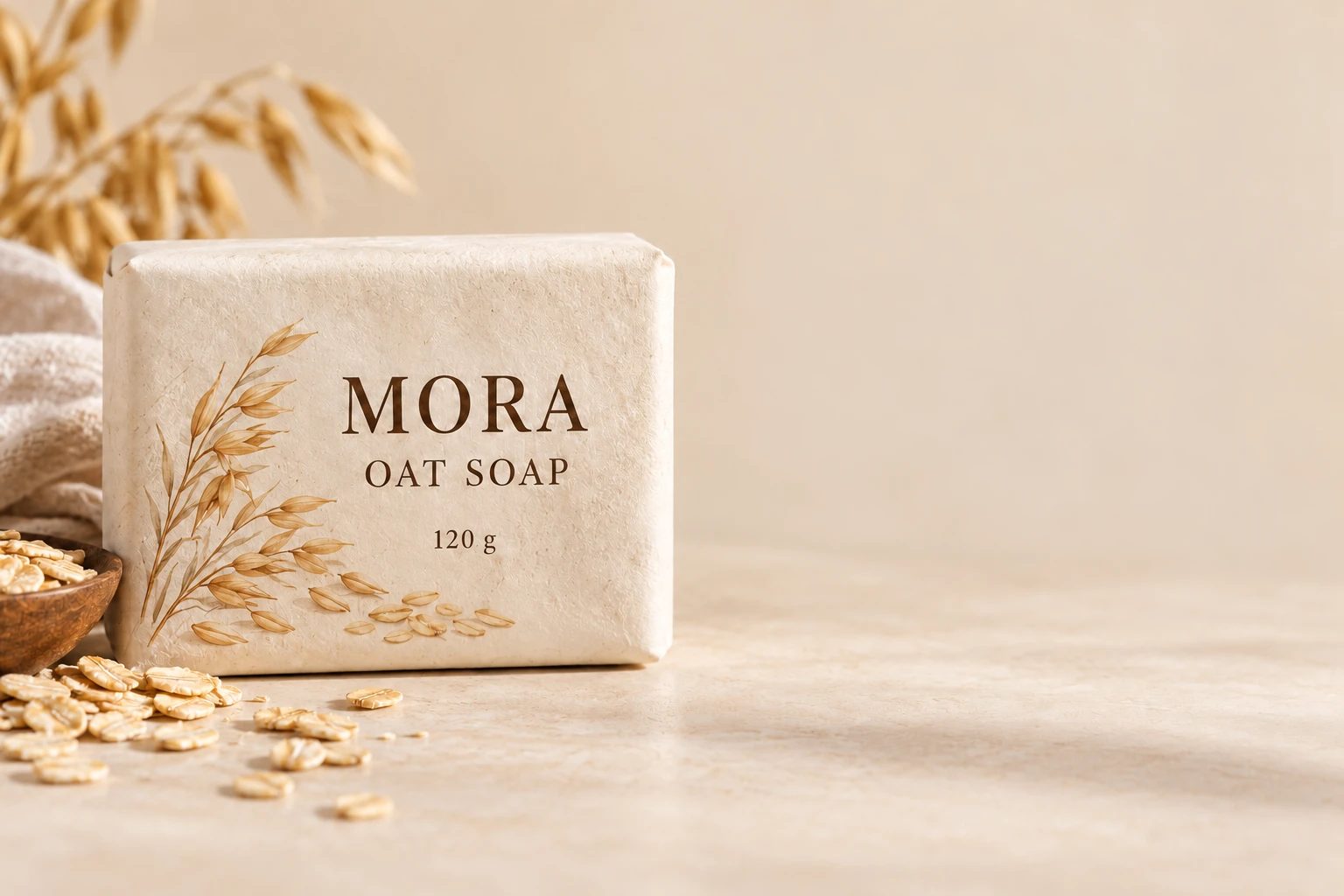
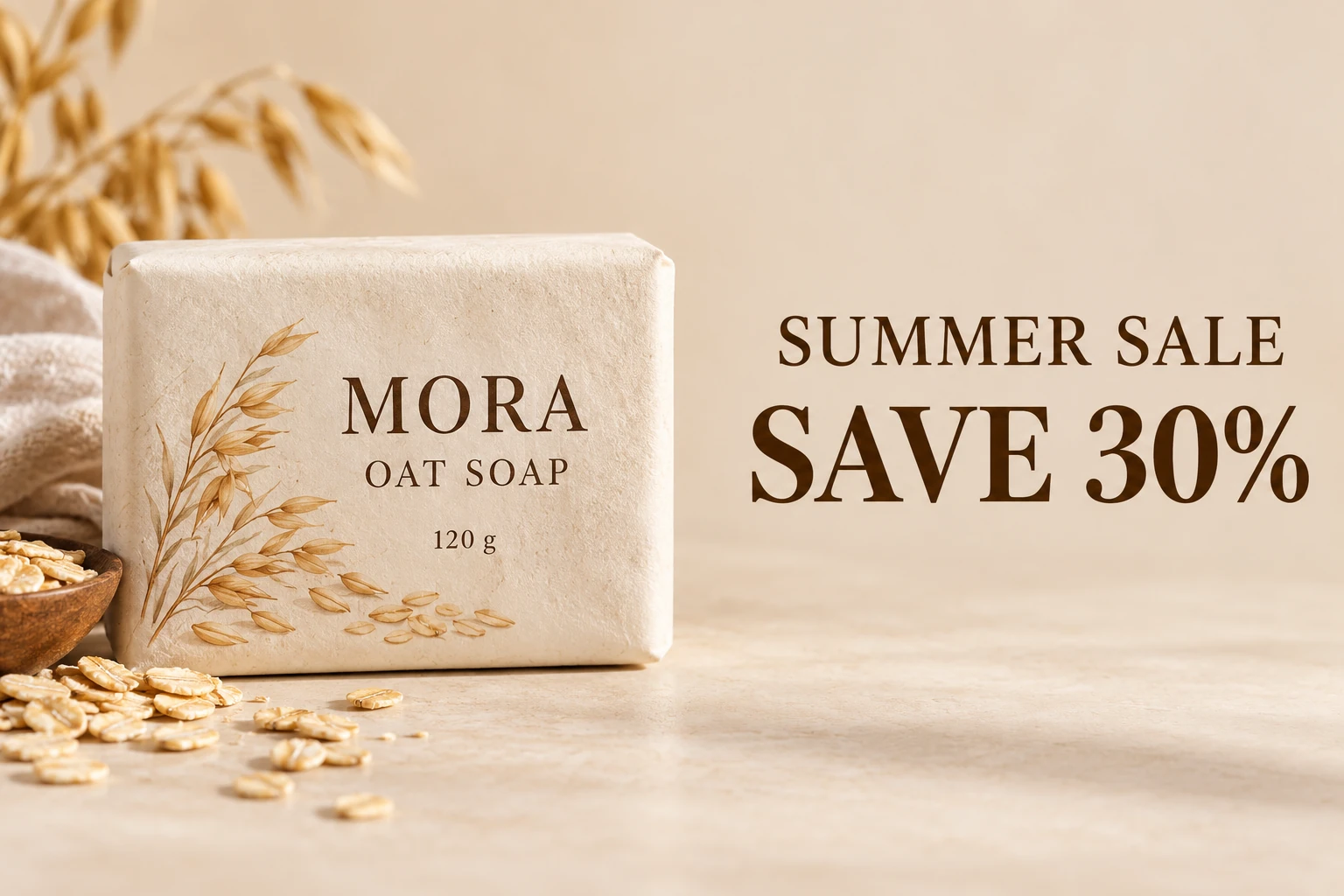
Original product promotion and actual selective edit · October 25, 2026.
Download the original product example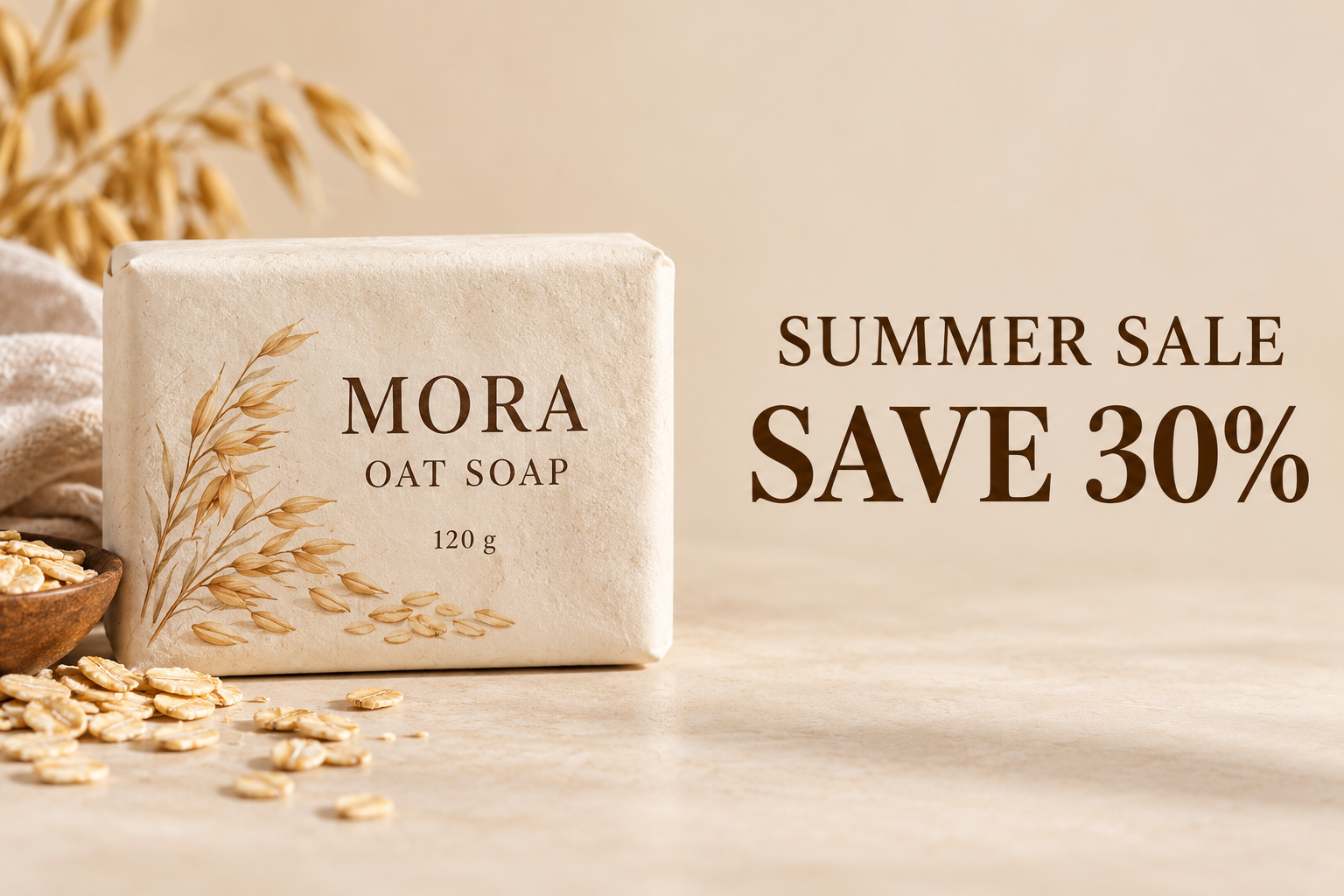
Remove a promotion and retain packaging text
The target is the two promotional lines on the background. “MORA”, “OAT SOAP” and “120 g” are printed on the package and need to remain. The location and keep list distinguish those two jobs.
Remove only "SUMMER SALE" and "SAVE 30%" from the background. Keep "MORA", "OAT SOAP" and "120 g" on the packaging exactly as written. Preserve the product, packaging, lighting, shadows and background. Do not translate, replace or add text.
Both promotional lines were removed. “MORA”, “OAT SOAP” and “120 g” remain readable in their original areas. Some paper texture and oat details were redrawn. Retaining those words does not mean the whole product photo stayed pixel-identical.


Original workshop graphic and actual date-only edit · October 25, 2026.
Download the original workshop example
Remove one date and retain a headline
The request only removes “JUNE 14”. It keeps the studio name, workshop title and booking text. Clearing an old date leaves an empty space; add the replacement date in your design editor after checking the retained text.
Remove only the date "JUNE 14". Keep "CLAY STUDIO", "SATURDAY WORKSHOP" and "BOOK NOW" exactly as written and in the same positions. Preserve the pottery, table, background, colors and layout. Do not translate, replace or add text.
“JUNE 14” was removed. The studio name, workshop headline and “BOOK NOW” remain readable in their original positions. Fine texture in the pottery, tabletop and cloth also changed in places. Check those details as well as the empty date area before adding a replacement date.
Choose an instruction for the image you have
Separate the target from nearby writing
| Your image | Add to the instruction | Check after processing |
|---|---|---|
| Promotion beside a product | Quote the sale message; name the brand and packaging words to retain. | Small print, quantities, package edges and the repaired background. |
| Old date under a headline | Quote the date and its location; retain the title and other text blocks. | The entire date is gone, including punctuation; the title has no changed letters. |
| A caption near another caption | Describe the target's position and quote both the remove and keep phrases. | Whether the correct line was removed and any neighboring letters were affected. |
| The same word in two places | Describe each location and say which occurrence to retain. | Both occurrences individually. If the distinction fails, use a local selection in an editor. |
For comic dialogue, bubble borders and sound effects need their own instructions. The manga text removal workflow shows a dialogue-only edit and a retained sound effect.
A successful deletion is only half the check
Keep the original as your reference
Verify the removed area
- Look for leftover punctuation, shadows, outlines and partial letters.
- Check gradients and straight lines where the text used to sit.
- Look for a mismatched patch, blurred texture or newly invented details.
Verify what had to stay
- Read retained names, dates, quantities and small print character by character.
- Compare line breaks, letter shapes, spacing and positions.
- Inspect object outlines, faces and textures outside the removed text.
An instruction guides an AI edit; it does not protect a pixel region. If a required label changes, keep the original as your base. In a local editor, you can apply only a checked background patch from the result around the unwanted words, leaving the original label untouched. A layered source file is the better option when available.
If two text areas are crowded together, try one carefully described target first. Use a separate submission for each different instruction. Avoid sending a large group until you have checked one representative result. A further attempt uses another task and credits.
Before you process
Selective text removal FAQ
How do I remove one word or line without removing all the text?
Upload the image and open Custom instructions. Quote the exact word or line to remove, describe its position, and list the important text to keep. Instructions are required on this page. Compare all retained writing after processing; the model can still change letters or nearby details.
Can I select text with a brush or click on individual letters?
No. This editor uses written instructions instead of a selection mask. You can identify a target by its wording and location, but you cannot lock the surrounding pixels. Use a local image editor when you need an exact selection boundary or a small controlled patch.
What if the same word appears more than once?
Say which occurrence you mean, such as the word in the top-right promotional badge, and describe the occurrence that must remain. A repeated word is a harder target for a text instruction. Test one image and check both locations; an exact distinction is not guaranteed.
Can I keep product labels, logos and small print?
You can explicitly name the packaging text to retain, as in the product example. The model may still redraw small letters, shapes or numbers. Read every retained label at full size and compare the package edges. When the label must remain exact, keep the original and make a local edit around the unwanted overlay.
Can I apply different instructions to several uploaded images?
One submission uses the same instruction for all its images. You can upload up to 10 JPG, PNG or WebP files together, within 20 MB per file and 4,096 pixels on the longest edge. Separate images that need different remove-and-keep rules into separate submissions.
What does selective text removal cost?
Each processed image uses 10 credits. Eligible new verified accounts currently receive 30 trial credits, enough for 3 images. Sign in before processing and check Pricing for further use. A new attempt uses another image task; failed AI tasks return their reserved credits.