Before the next lettering pass
Remove dialogue from a manga panel
If you still have the original layered drawing, hide its dialogue layer first. That gives you a cleaner base than regenerating pixels. This workflow is for dialogue already merged into a JPG, PNG or WebP: a page export, a comic panel or a saved webtoon image.
- 01 / Start small
Upload a sharp panel
Use your best original export. If a full page contains tiny letters, crop one panel in your image editor first. Leave room around bubble tails and panel borders so you can inspect them.
- 02 / Set the scope
Name what should stay
Review Custom instructions in the editor. Ask to remove dialogue inside bubbles and retain sound effects. Blank instructions use the general remove-all-visible-text behavior, which may also clear lettering you wanted to keep.
- 03 / Check before typesetting
Compare the whole image
Look for punctuation left in the bubbles, broken outlines and changes to faces or clothing. Download only after checking the surrounding drawing. Add new lettering in your preferred editor.
Remove only the dialogue text inside the speech bubbles. Keep every speech bubble, its outline and tail, panel borders, characters, line art and halftone texture. Keep sound effects and all lettering outside the bubbles. Do not translate or add text.
Two inputs, two different checks
Inspect the actual cleanup results
These original illustrations were generated for this guide. The results come from the Image Text Eraser processing workflow, using the instructions shown here. They are examples you can examine, rather than a guarantee for a different scan or page.
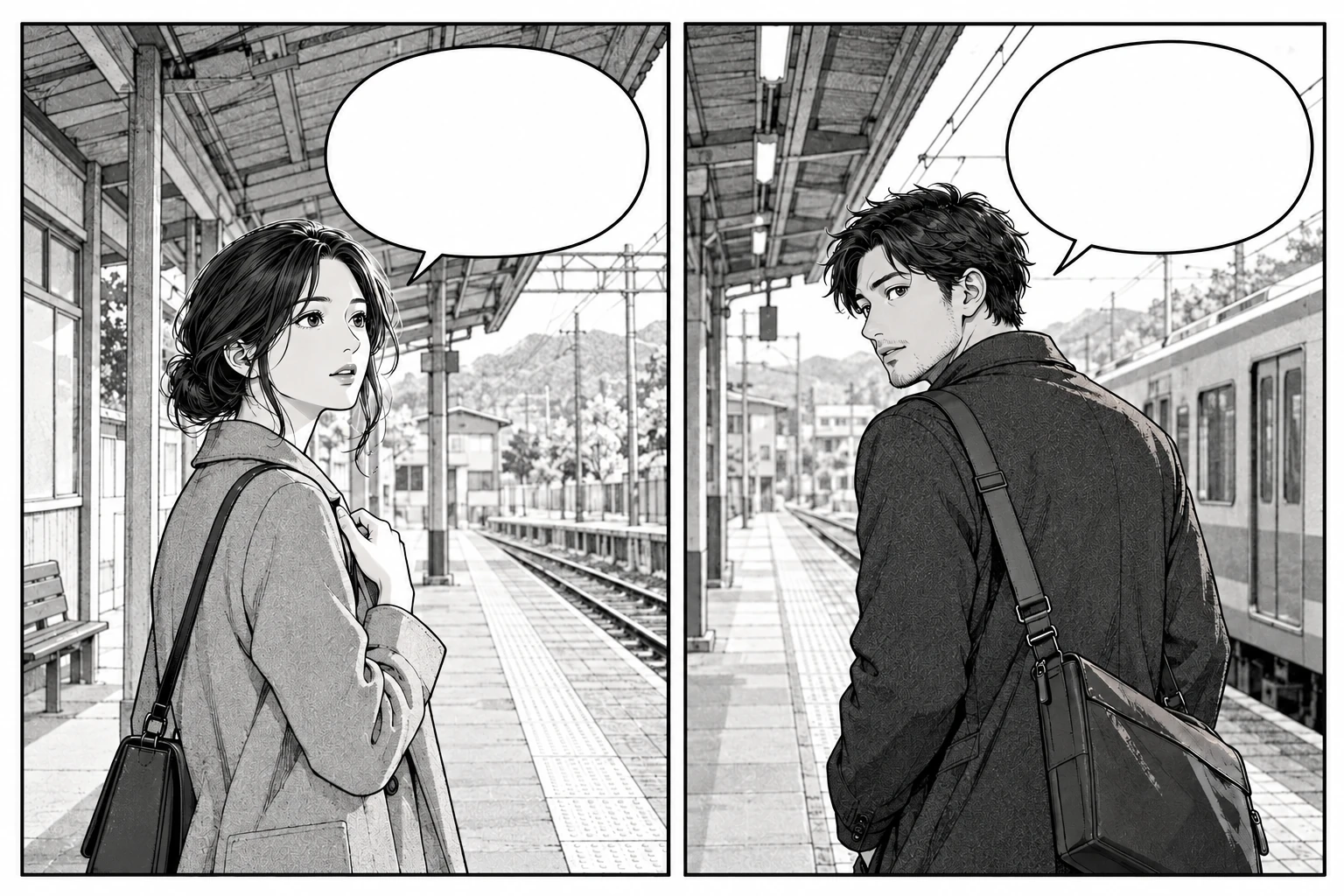
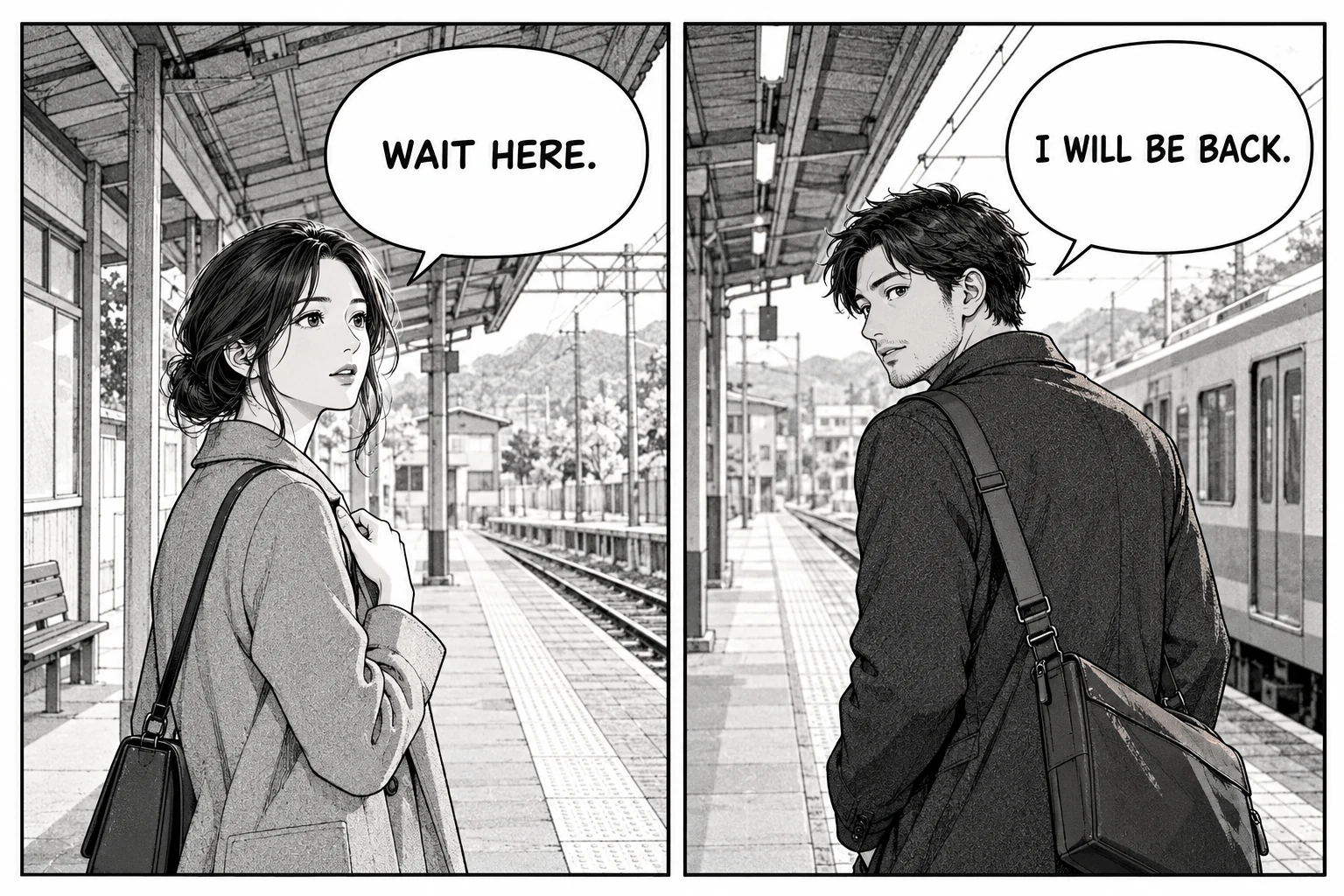
Black-and-white source and actual processed result. October 24, 2026.
Download this original to try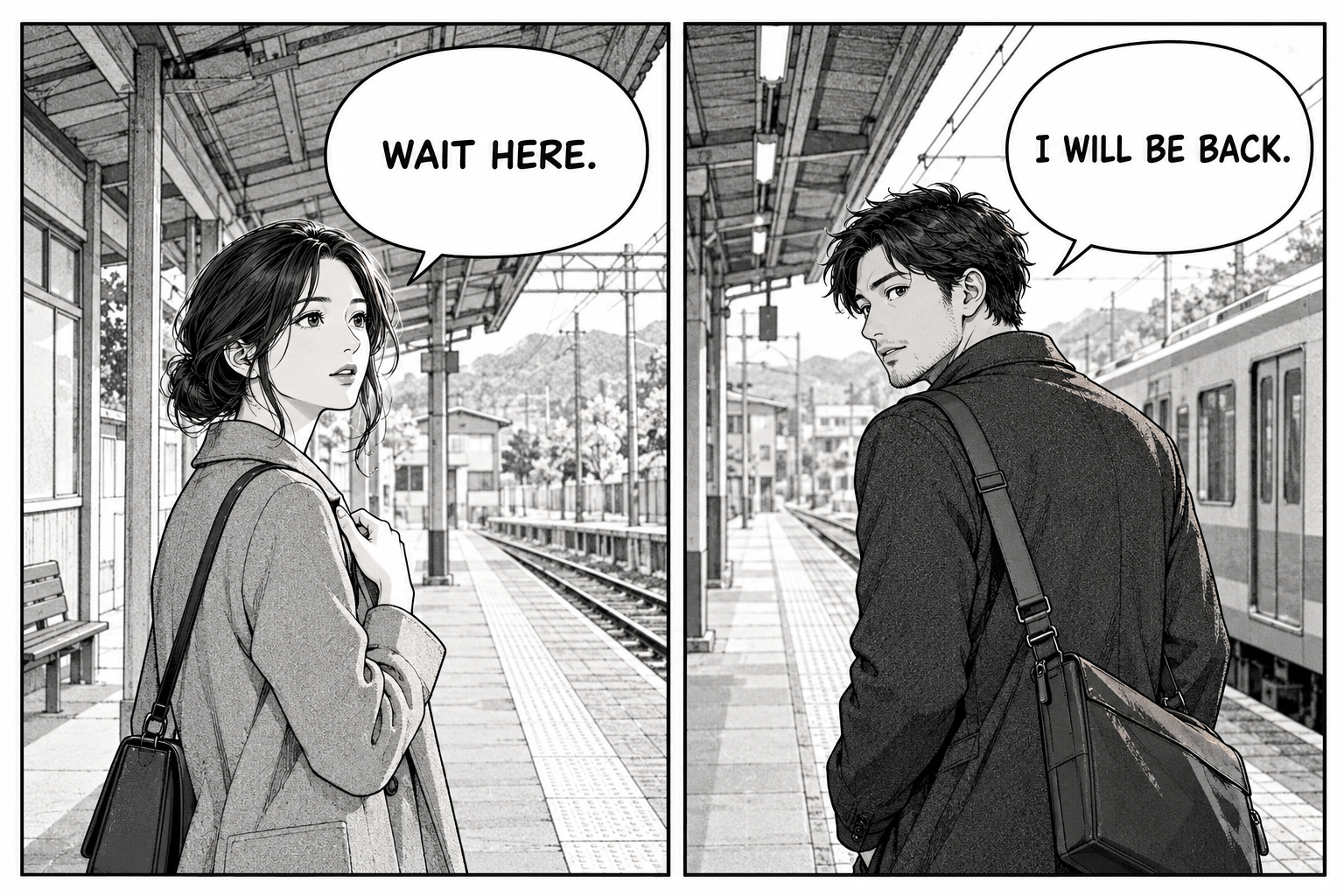
White bubbles, thin borders, halftone clothing
The goal is to clear “WAIT HERE.” and “I WILL BE BACK.” while keeping both bubbles, their tails and the two-panel layout. Use the dialogue-only instruction above.
Both dialogue lines were removed, and the two bubble outlines, tails and panel frames remain visible. The coat textures and some facial details also changed outside the bubbles. Compare those areas before deciding whether this base is suitable for your lettering work.
Check at your intended lettering size. Leftover periods can look like print texture in a small preview, while altered dot patterns are easier to notice when enlarged.
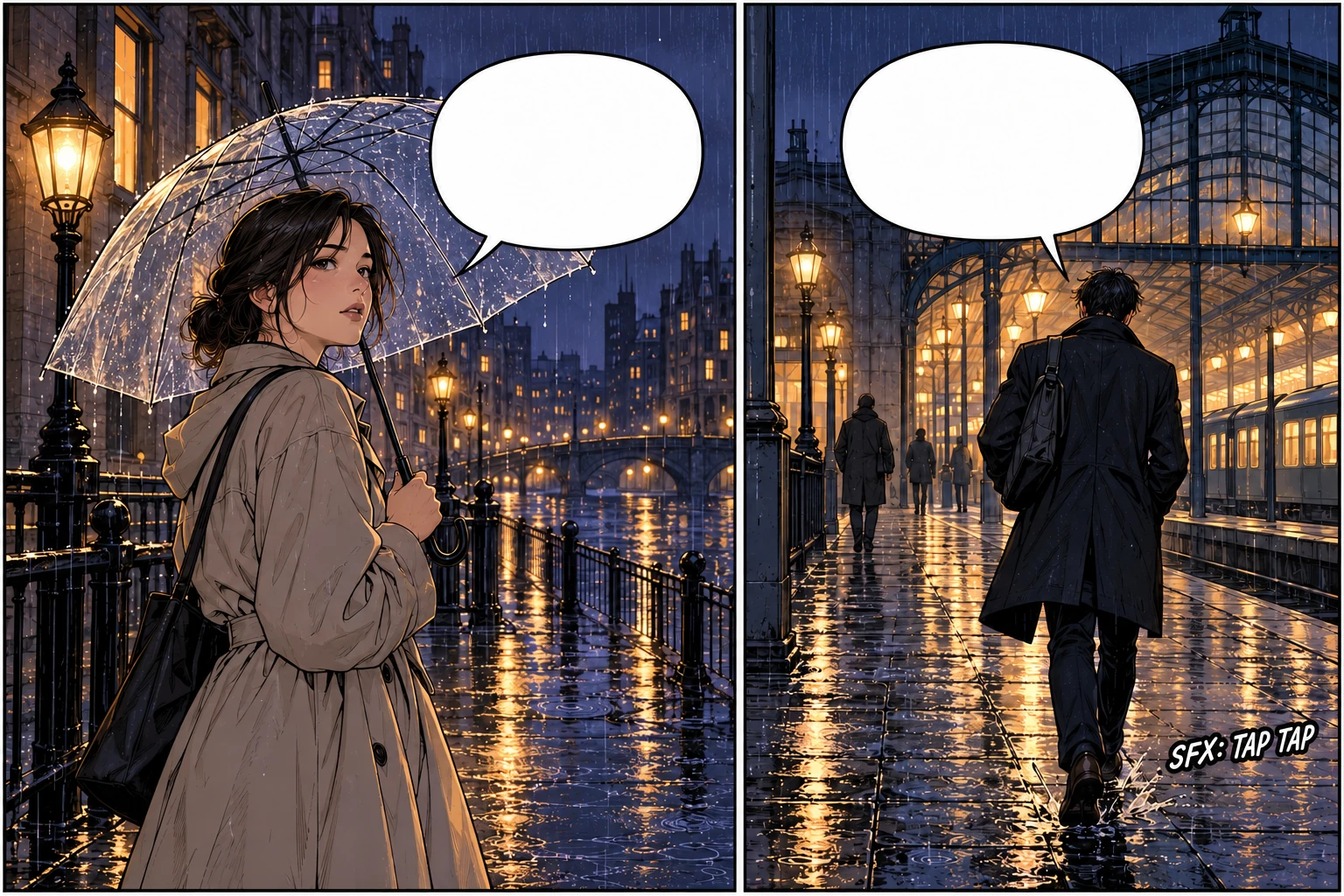
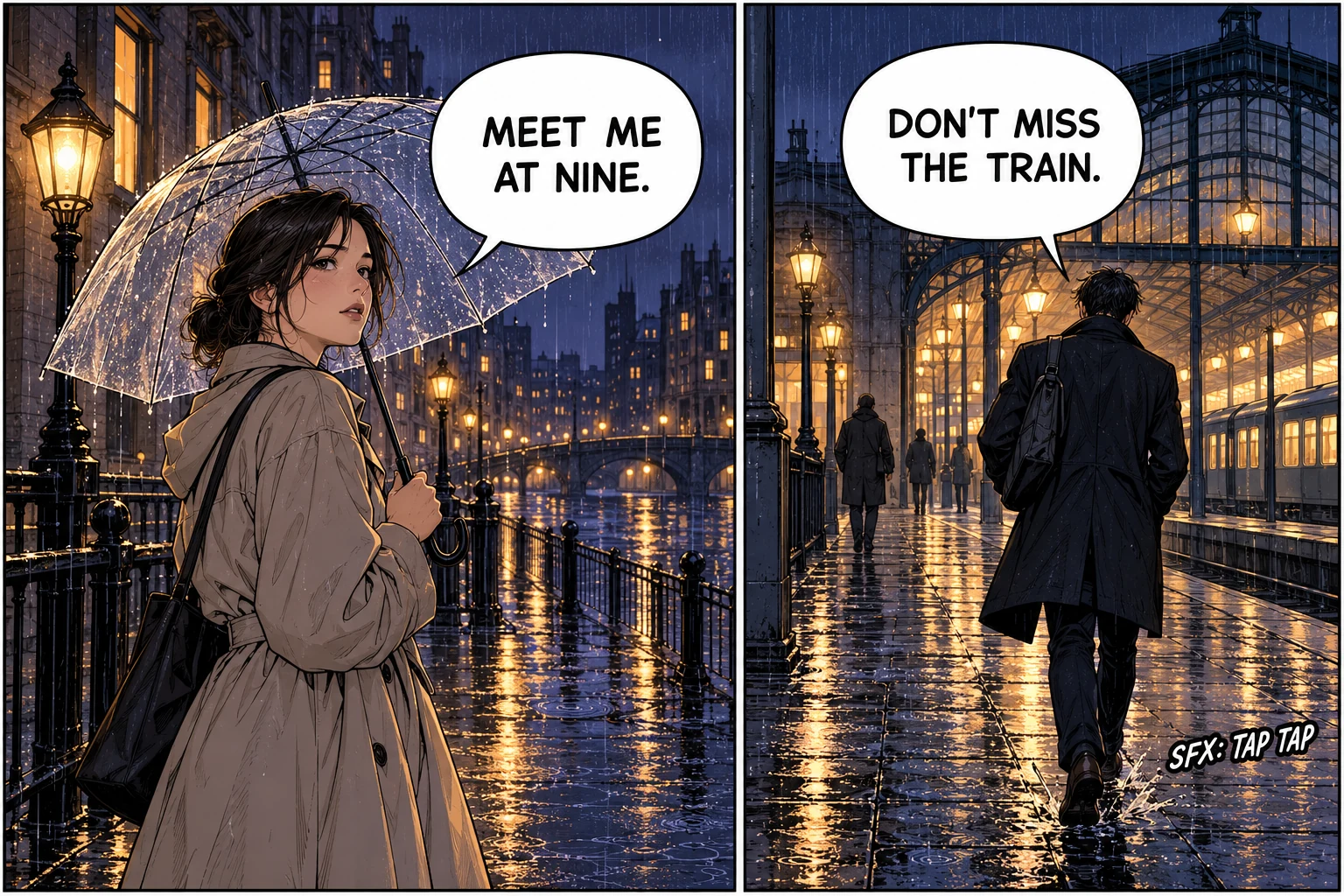
Color source and actual selective cleanup result. October 24, 2026.
Download this original to try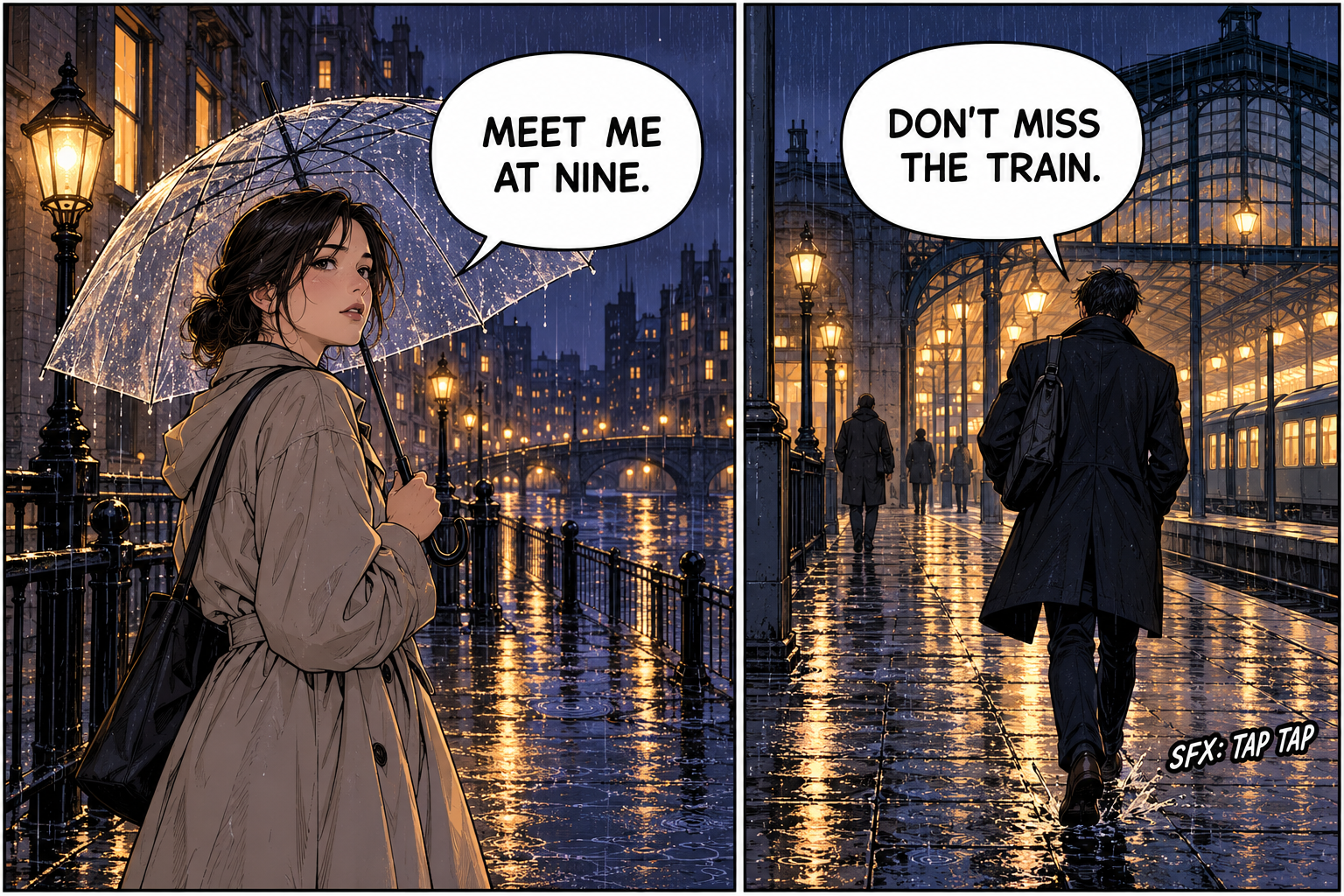
Clear dialogue and keep a sound effect
This panel needs a narrower target. Remove the two dialogue lines and keep “SFX: TAP TAP” outside the bubbles. Quoting all three phrases makes the intended remove/keep split explicit.
Remove only "MEET ME AT NINE." and "DON'T MISS THE TRAIN." from inside the speech bubbles. Keep "SFX: TAP TAP" exactly as written outside the bubbles. Keep both bubble outlines, tails, panel borders, characters, rain lines and colors. Do not translate or replace any wording.
Both dialogue lines were cleared, and “SFX: TAP TAP” was retained outside the bubbles. The bubble outlines and tails remain visible, but rain lines, clothing and reflections changed in places. Instructions guide the edit; they do not lock individual pixels in place.
Choose the right cleanup task
Dialogue, captions and sound effects need different instructions
| Your goal | What to ask for | What to inspect |
|---|---|---|
| Empty speech bubbles | Remove only the dialogue; retain bubble outlines and tails. | Periods, outlines and thin tails close to the lettering. |
| Keep selected lettering | Quote the words to remove and the sound effects to keep. | Every retained word, its position and any nearby artwork. |
| Clean a color webtoon panel | Specify dialogue-only removal; keep colors and nearby drawing. | Gradients, faces, shadows and changes outside the bubbles. |
| Remove SFX over artwork | Submit that as a separate, specific removal request. | Reconstructed drawing where the letters obscured the original. Missing details cannot be recovered with certainty. |
Removing the entire balloon is a different task from clearing its writing. If you need to redraw the border or rebuild artwork behind a balloon, work in your drawing editor and keep the original page as a reference. This tool does not create layered comic files.
Before you add new dialogue
Decide whether a result is ready to letter
Check the text area
- Look for tiny letters, ellipses and punctuation left behind.
- Follow each bubble outline and tail to check for gaps or a changed shape.
- Check that the interior tone is consistent before placing replacement text.
Check outside the text area
- Compare faces, hands, line weight and panel boundaries.
- Inspect repeating halftone dots, clothing texture and gradients.
- Read every sound effect or caption that your instructions said to retain.
If a small white bubble is the only problem area, a local fill on a copy of the drawing can be more predictable. If lettering overlaps detailed artwork, expect more reconstruction and decide whether hand retouching is needed. Generating another version may help, but it is another image task and uses credits.
For several similar panels, test one first. Then submit up to 10 supported images with the same instructions. Separate panels that need different keep/remove rules into different submissions. Review each result individually; one good panel does not establish that the whole batch is clean.
Practical questions
Manga text removal FAQ
Can I remove manga text without removing the speech bubbles?
You can ask for dialogue-only removal and specify that the bubble outlines and tails must stay. The instructions on this page are a starting point. Inspect the whole result because the AI can also alter thin borders, artwork and textures outside the letters. There is no manual selection brush in this editor.
Can I keep sound effects while clearing dialogue?
Name the sound effects you want to keep and say that only dialogue inside bubbles should be removed. For selective cleanup, quote the exact dialogue as well. Start with a single panel and check every retained word before applying the same instructions to more images.
Does this translate manga or add replacement lettering?
No. This step produces a flattened image with unwanted writing removed. It does not translate, create editable text layers or typeset new dialogue. Bring a result you have checked into your lettering editor to add the replacement text.
Can I clean a whole manga page or a long webtoon strip?
You can upload a supported page image within 20 MB and 4,096 pixels on its longest edge. Very small letters and dense panels are harder to inspect. For a long webtoon strip, split it into panels in your image editor first. You can submit up to 10 images together, using the same instructions for that batch.
Can I try the manga text remover for free?
Eligible new verified accounts currently receive 30 trial credits, enough for 3 images at 10 credits per image. Sign in before processing. Further use requires sufficient credits; the trial is not unlimited free editing. A failed AI task returns its reserved credits.
Will the original halftone pattern and image resolution stay exactly the same?
That is not guaranteed. The model generates a repaired image and can change tones, fine lines, dot patterns and detail outside the text. Output detail and resolution can vary. Keep your original, compare the whole page at the size you will use it, and use a local edit in your drawing software when a small area must remain exact.