Check this before spending credits
A visible stamp and a metadata date need different fixes
Open the original photo in another image viewer and hide its controls. If the numbers remain inside the picture, they are part of the image you need to edit. If the date only appears in the app's information panel or around the image, first check what the app is displaying.
| Where you see the date | What it usually represents | Useful next step |
|---|---|---|
| Numbers printed over sand, grass or a face | A stamp burned into the image pixels. | Use this editor on a copy, then inspect the rebuilt area. |
| Only in a photo's Info or Details panel | A metadata or library date, rather than visible lettering. | Inspect or edit that record in your photo library or metadata tool. |
| Outside the photo, or gone when controls are hidden | A viewer or gallery label. | Hide the interface or export the original image before deciding it needs cleanup. |
| Only in a filename or file listing | A name or file-system date. | Manage that file information separately; erasing picture pixels will not fix the listing. |
Capture date and time can be stored as metadata separate from image data, as described in CIPA's Exif overview (PDF). Removing visible numbers and changing a stored date are separate edits. This page demonstrates only visible stamp removal.
Keep a clean original in your archive
Remove a camera date without replacing it
- 01 / Choose the source
Use the best copy you have
Check for an unstamped original before uploading. A camera export is easier to inspect than a small messaging-app preview. Save an untouched copy with the date so you retain a reference.
- 02 / Focus the request
Name the date and its corner
Review the date-only instruction in the editor. For a precise target, quote the full date and time, including slashes and colons. Name any other writing you want to retain.
- 03 / Compare before saving
Check the stamp and the scene
Inspect every digit, then the repaired texture, shoreline, faces and objects. Download a checked result as a separate copy. A clean date area does not establish that the rest stayed unchanged.
If the stamp sits entirely in a disposable border, a crop in your image editor may be enough. If it covers the scene, this tool reconstructs that area. There is no manual selection brush in this workspace.
Two backgrounds, different inspection needs
Inspect the actual date stamp removal results
These original photos were generated for this guide and include deliberate visible camera stamps. The results come from the current Image Text Eraser workflow, using the exact requests below. They illustrate what to check, rather than promising the same outcome for a different photo.

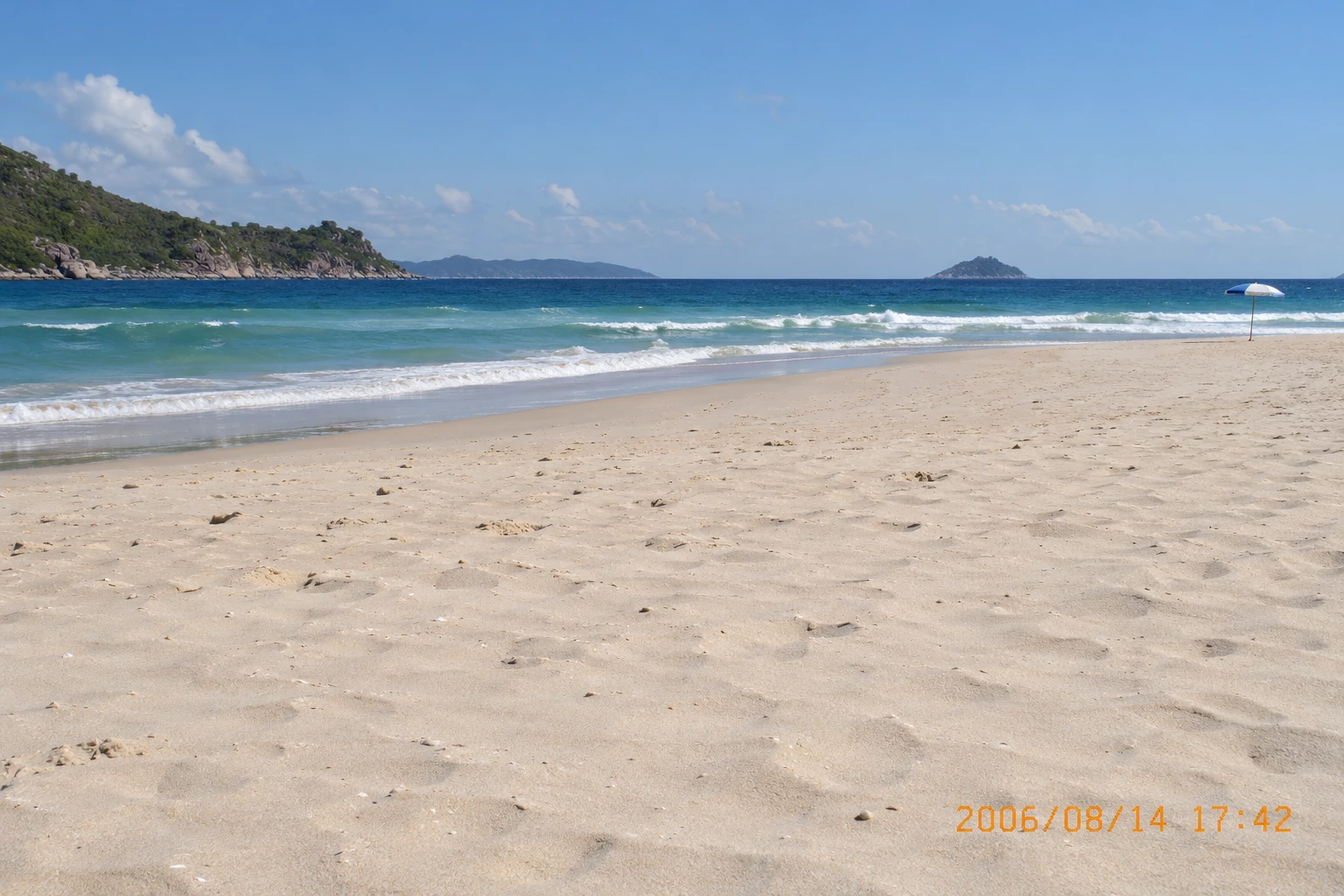
Date over sand · Actual processing example · October 26, 2026.
Download the original beach example
Orange digits on a lighter sand texture
The target is “2006/08/14 17:42” in the lower-right corner. Check for faint orange fragments, a flat-looking patch and changes to the sand grain. Then follow the horizon and shoreline across the whole photo.
Remove only "2006/08/14 17:42" from the lower-right sand. Continue the surrounding sand texture naturally. Keep the beach, umbrella, shoreline, horizon and sky. Do not add text, crop the image or redesign the scene.
The orange date and time are gone, with sand filling the repaired corner. The umbrella and horizon remain visible. Sand grain, waves and some sky detail also changed outside the date area. Compare the whole image before choosing this copy for printing or sharing.
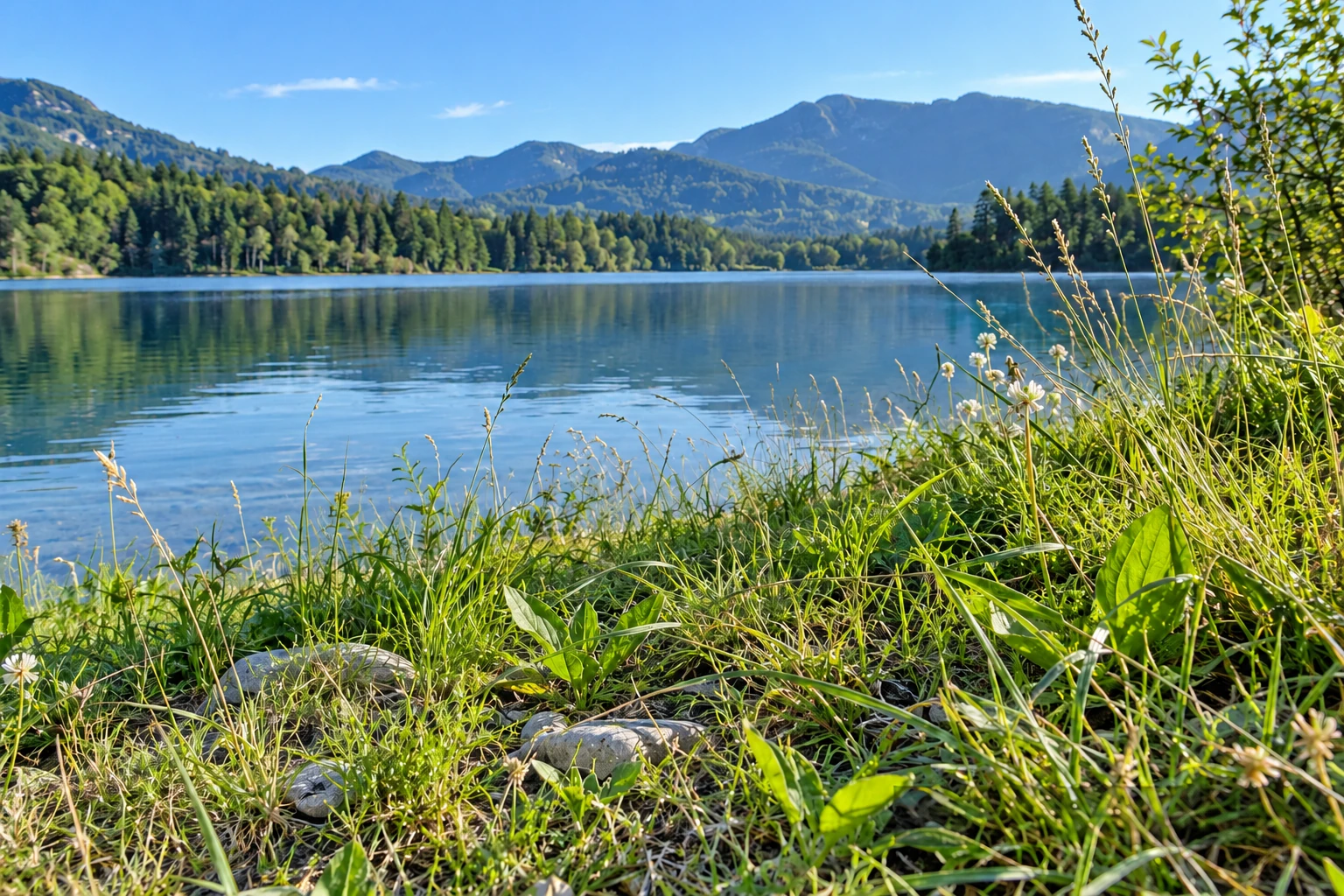
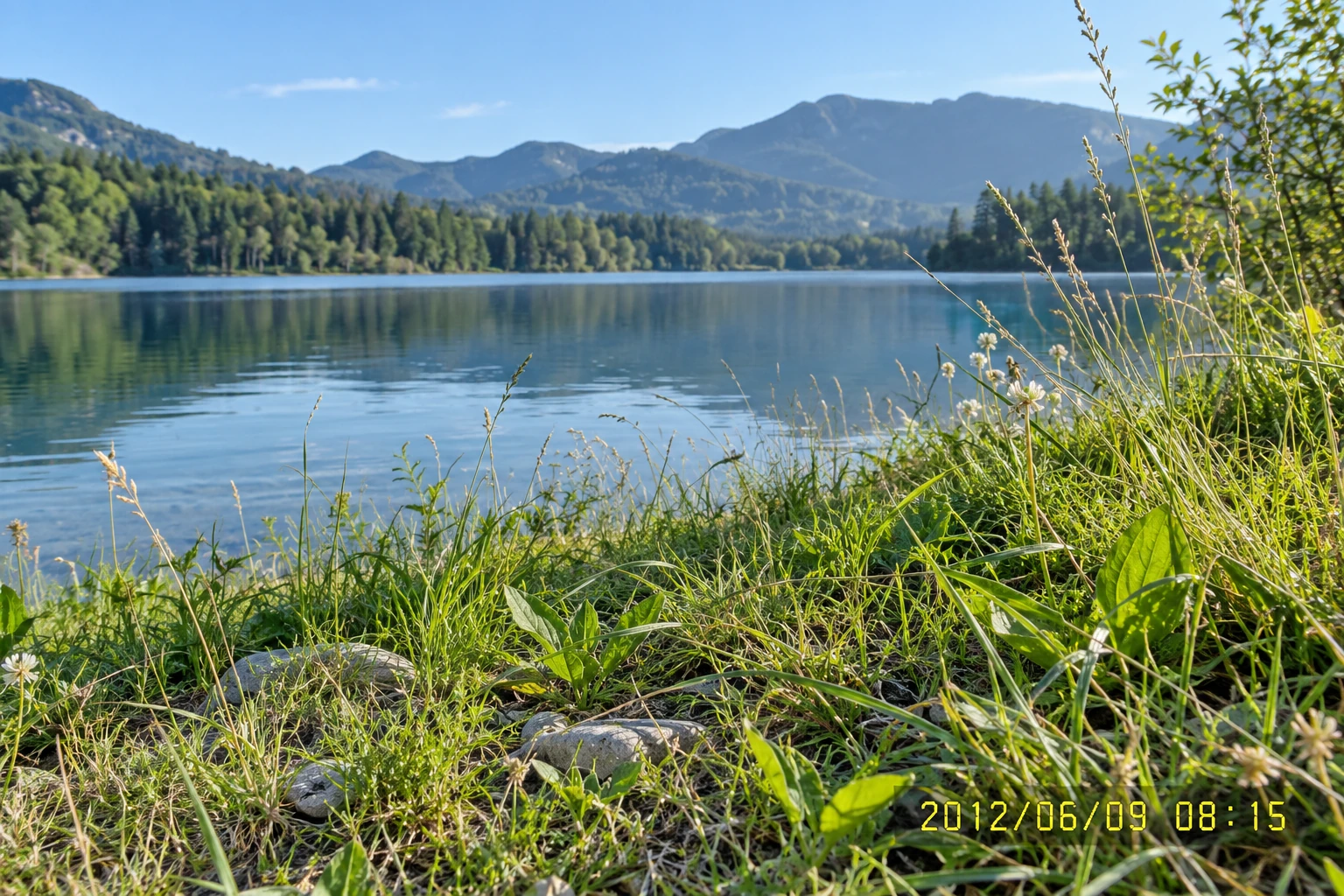
Date over detailed grass · Actual processing example · October 26, 2026.
Download the original grass example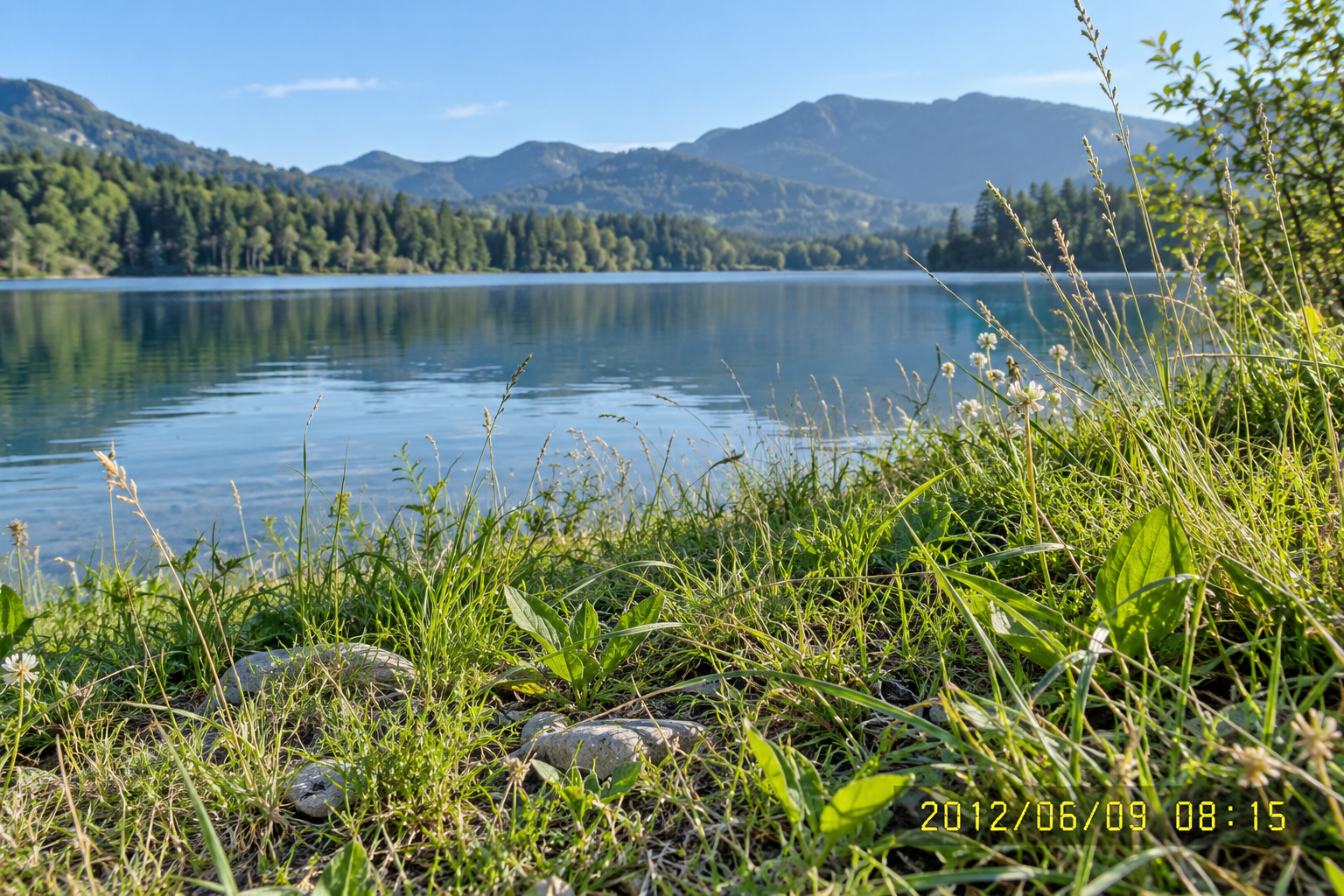
Yellow digits across thin grass stems
This date overlaps different leaves, stems and shadows. Deleting the yellow strokes is only part of the task: the new grass needs to look plausible beside the surrounding plants. The covered original stems cannot be recovered with certainty.
Remove only "2012/06/09 08:15" from the lower-right grass. Reconstruct the covered grass using nearby stems and leaves. Keep the lake, mountains, rocks, horizon and surrounding plants. Do not add text, crop the image or redesign the scene.
The yellow date and time are gone, with grass and leaves crossing the former stamp area. The lake and mountains remain visible, while many fine foreground stems have been redrawn, including outside the stamp. Treat these as generated plant details, not an exact recovery of the covered grass.
Before printing or sharing the new copy
Use the background to judge the repair
Inspect the date area closely
- Look for leftover slashes, colons, digit outlines and orange or yellow color traces.
- Check for repeated texture, an abrupt smooth patch or blurred grass.
- Follow thin stems, fabric patterns and straight lines into and out of the edited area.
Inspect the rest of the photograph
- Compare faces, hands, objects, horizon lines and shadows against the original.
- Check the downloaded image's size and detail at the size you intend to use.
- Keep the original and inspect metadata separately if your archive depends on capture dates.
If a detailed area looks invented or distorted, use an unstamped original if one exists. For a small local repair, work on a copy in an image editor so you can control the affected area. Repeating an AI attempt can produce another variation, but it uses another task and credits.
For an archive of similar photos, test one representative image first. Submit up to 10 images with the same instruction only after checking that trial result. Separate images that need different exceptions. To prevent future stamps, consult your camera's manual for its date-imprint setting; changing it will not erase dates already printed on older pictures.
If you need to remove another line while retaining a label, use the specific text removal examples to write a narrower request.
Dates, formats and the finished copy
Photo date stamp removal FAQ
Can I remove a date and time stamp already printed on a photo?
Yes, you can submit a supported photo and ask to remove the visible camera date and time. The tool generates replacement pixels using the surrounding image. Check for leftover digits and changes to the scene; it cannot recover the exact original detail hidden beneath the stamp.
Does this remove or correct the EXIF date taken?
This workspace edits the visible picture, rather than providing a metadata editor. If the date only appears in a photo information panel, use a metadata or photo-library tool for that task. Do not rely on this workflow to preserve or remove EXIF; inspect the downloaded file separately and keep your original.
Can I keep other writing while removing the timestamp?
Use Custom instructions to name the date or time and its location, then identify the other writing that should stay. There is no manual selection brush or pixel lock. Read the retained words after processing; the model can also change unrelated lettering or detail.
Will the grass, hair or texture under the stamp be restored exactly?
No exact recovery is guaranteed. The stamp covers information, and the model invents a plausible continuation from nearby pixels. Thin grass stems, hair, fabric patterns and straight lines need close inspection. Prefer an unstamped original or a controlled local edit when those details must remain exact.
Can I remove dates from several photos or from a phone photo?
Use JPG, PNG or WebP files up to 20 MB each and 4,096 pixels on the longest edge. Export a supported copy if your phone image is HEIC. You can submit up to 10 images with one shared instruction; test one first and use separate submissions when the keep/remove rules differ.
Can I try date stamp removal without buying a plan?
Eligible new verified accounts currently receive 30 trial credits, enough for 3 images at 10 credits per image. Sign in before processing. Further use requires enough credits; another attempt uses another image task. Failed AI tasks return their reserved credits.